How to Use the Passage Divide Tool
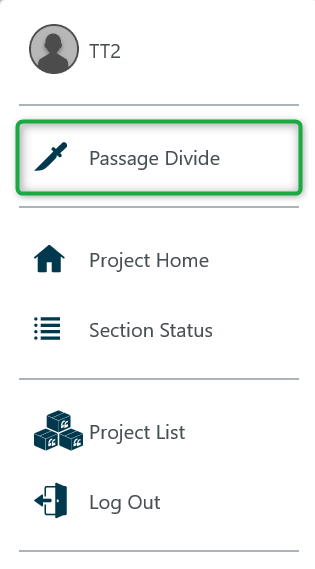
When drafting, you can divide passages into smaller portions. On the ‘Draft: Draft Record’ page, the Passage Divide tool—a knife—is available. Tap the 3-dot menu in the upper right, and then tap Passage Divide.
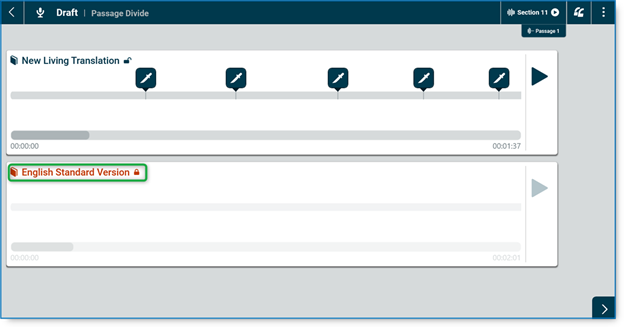
Excluding references:
By default, all references will be included in the sub-passages you create. To exclude a reference, tap on its title. The title and its lock icon will become red, and the lock icon will change to a closed lock. This indicates it will not be used in the sub-passages.
Making Divisions:
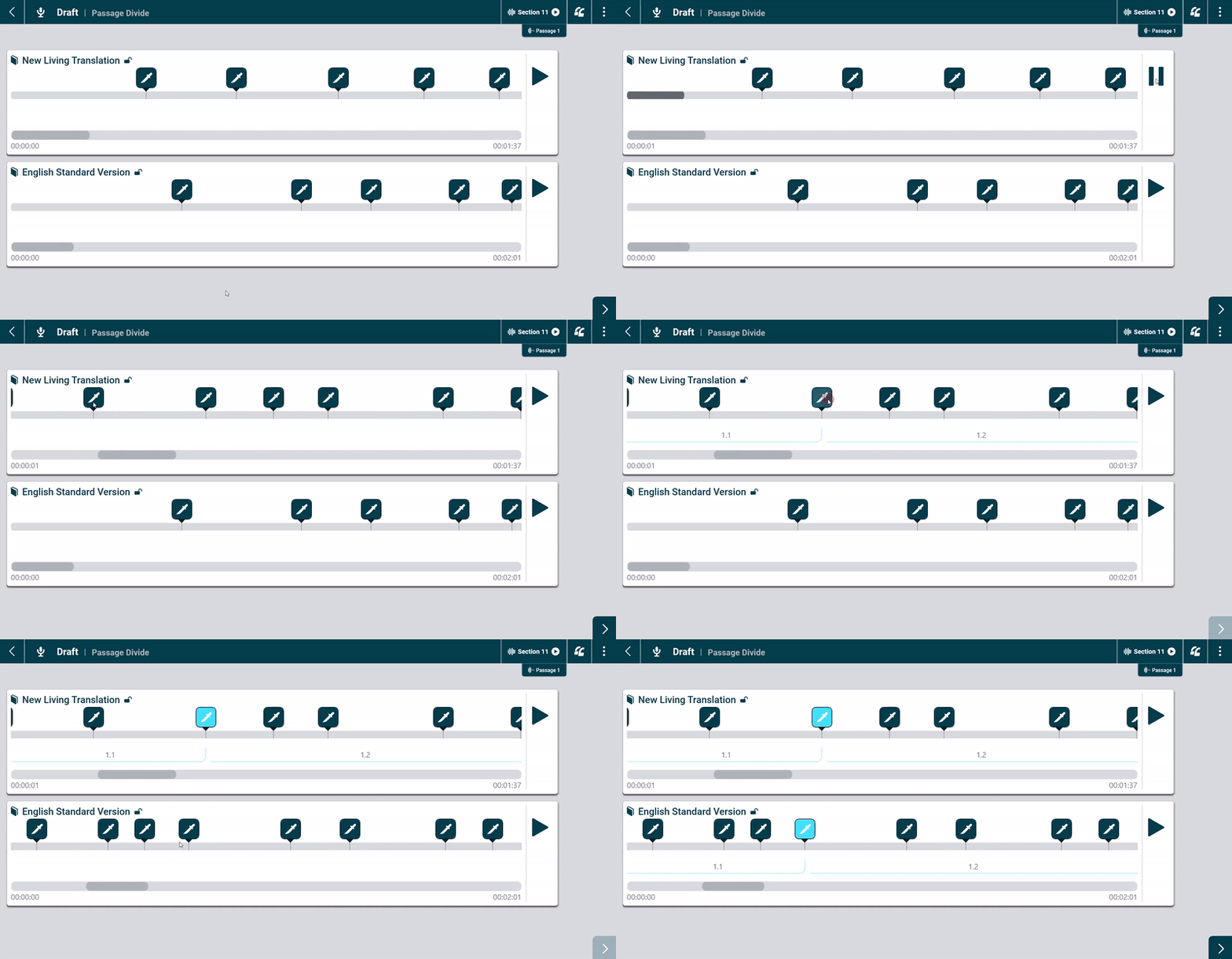
- Listen to the passage by clicking/tapping the Play button and decide where the divisions should be made. PLEASE NOTE: After you tap Next, you cannot change or add to the divisions. It is important to determine all of the divisions at this time, not just the first one.
- Divisions can only be made at specific points represented by knife icons. Starting with the first reference, identify the first division point and tap on the knife icon. The selected knife will turn light blue, and a blue line will appear beneath the reference showing the new sub-passages (for example, 1.1 and 1.2).
- Find the same point in the other references and tap on the appropriate knife icon.
- If needed, repeat steps 1-3 again to create additional divisions in the passage.
Making Additional Divisions:
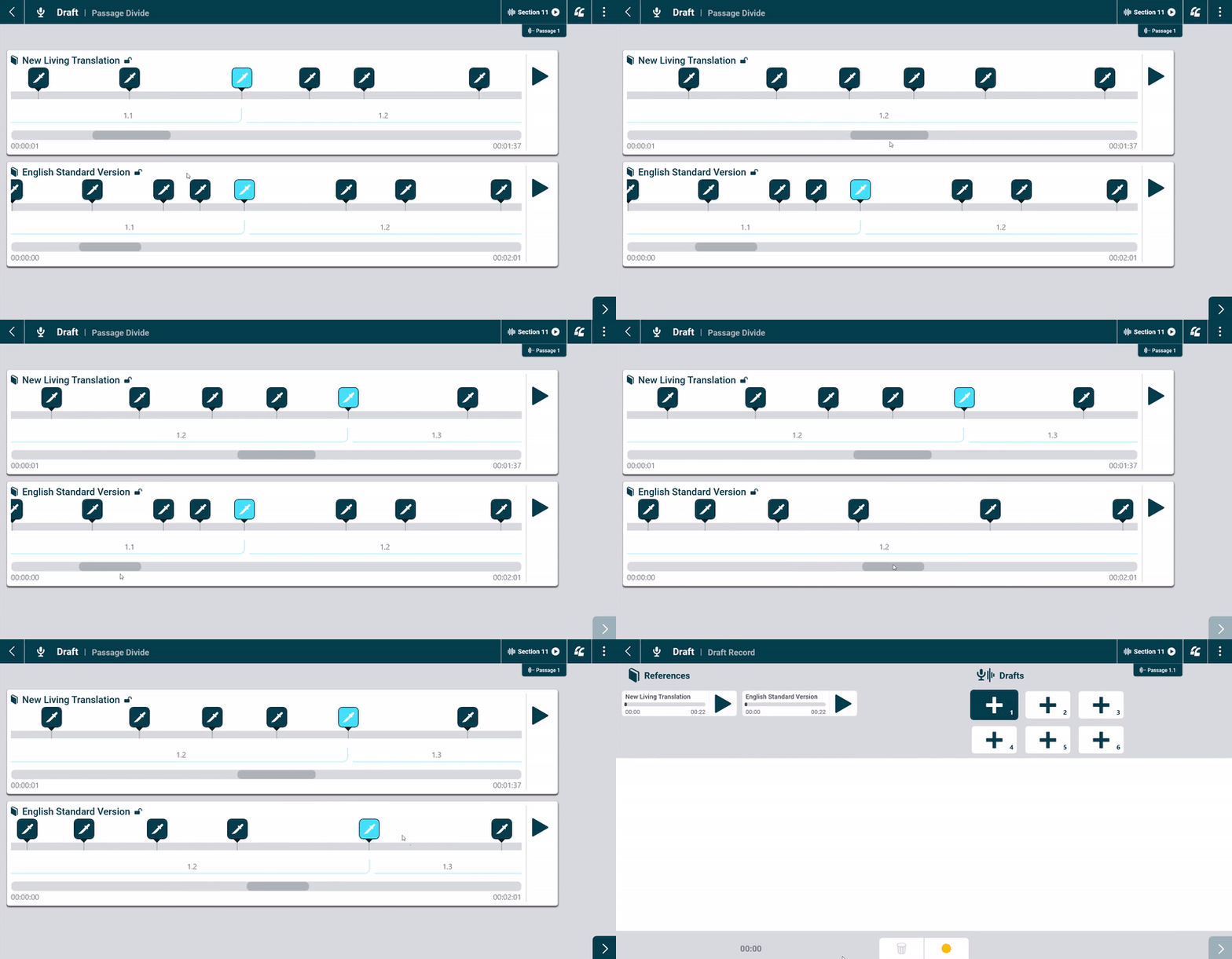
When you have made all the desired divisions tap the Next button (bottom right corner). This will become active (dark blue) when an equal number of division points have been made in each reference. You will proceed to the Draft page for the first sub-passage (e.g. Passage 1.1).