Consultant Revise
The Consultant Revise step gives the translation team the opportunity to make improvements to their draft after the Consultant Check has been completed.
Open the Render 3 program. Select your username and input your password. Next, select the yellow Consultant Revise icon from the Project Home page (see the green box below):
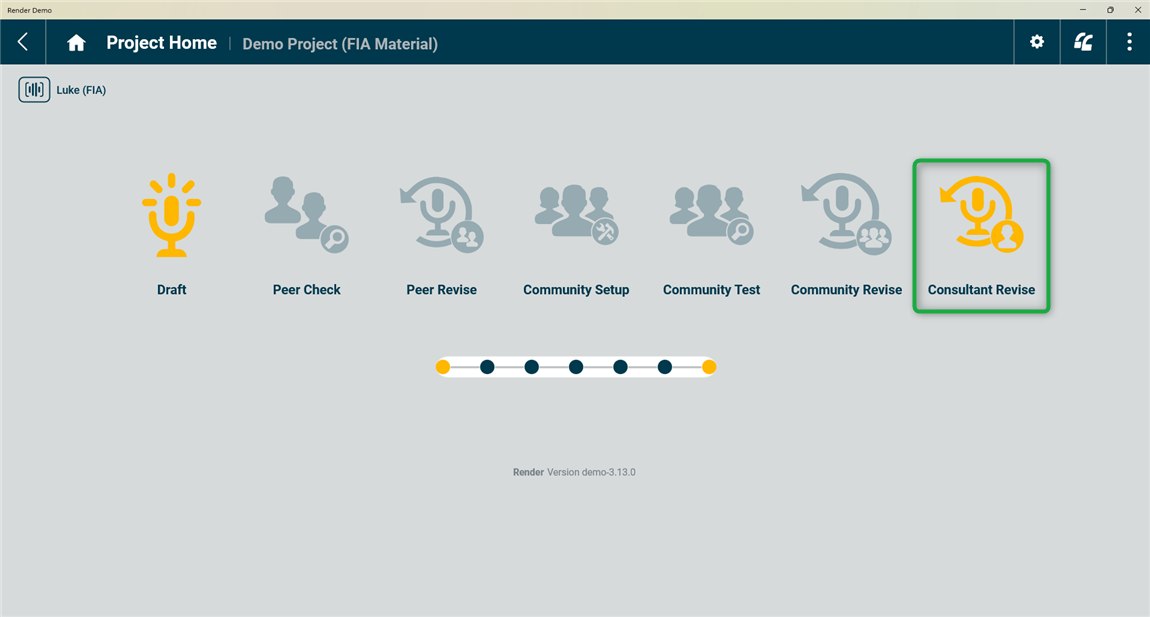
Consultant Revise: Passage Select
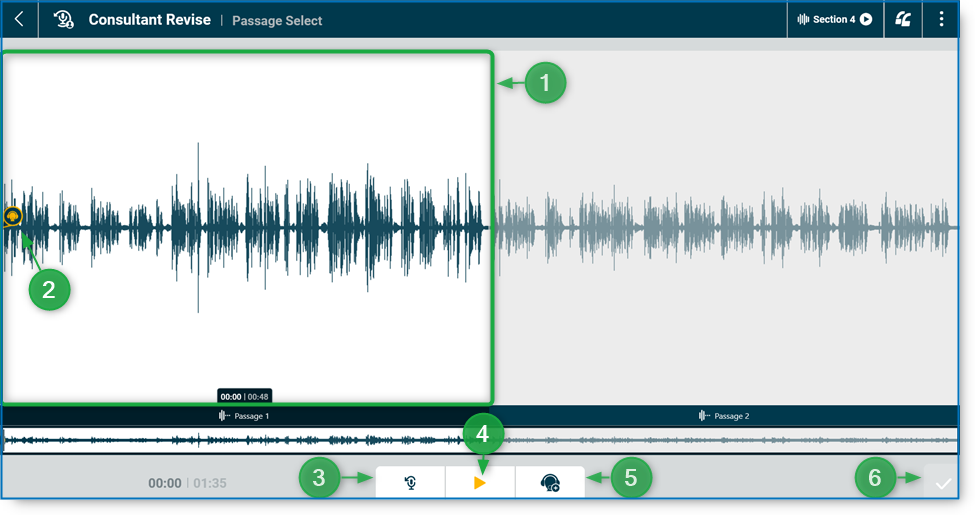
The Consultant Revise: Passage Select page opens with markers showing notes from the consultant.
- Active Passage: The active passage has a white background. Only one passage can be active at a time. This is the passage that will open if you select the Re-record button (3). All other passages are inactive (grey background color). To activate a different passage, select it by clicking/tapping in the area of that passage.
- Note: shows notes placed during the Consultant Check stage by the Consultant (see Consultant Check article for more details). Select to hear or see the note (see below). ALERT: If the Back Translator made any notes to the Consultant, they will be displayed here as well at the beginning of a passage.
- Re-record (optional): tap this to enter the Draft Record page and record a new draft. (see the Draft article for additional details on the Draft Record page)
- Play: select to listen to the draft of the active passage.
- Add Note: select to add a new note for the consultant.
- Finished: When this Next button turns yellow and shows a check mark, clicking/tapping it will Finish the Consultant Revise step for this section and send it to the next stage in the workflow (likely Back Translate). Render will then take you back to the Project Home page.
Note Review
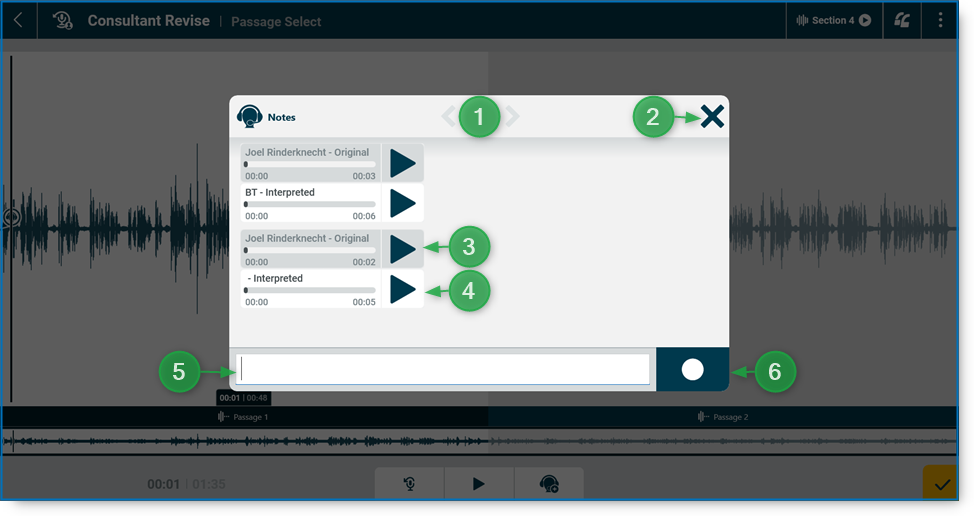
- Next or Previous note: if the passage has notes at multiple locations, the arrows at the top of the Note pop-up allow you to move between the different note locations without closing this popup. Be aware that the notes in one passage are separated from notes in other passages. These arrows will only move between the notes in the current passage.
- Close: select to close the note popup
- Play original note: plays the note the consultant recorded during the Consultant Check.
- Play interpreted note: if note interpretation has been turned on in the Workflow settings (see Configure Workflow – Settings for Stages), then the interpretation can be played here.
- Note textbox: this area allows you to type a reply to the consultant if you want to. Note interpretation is not available for typed notes.
- Record note: record an audio note for the consultant. This will be your reply to the Consultant’s note at this location in the draft.
Draft Record
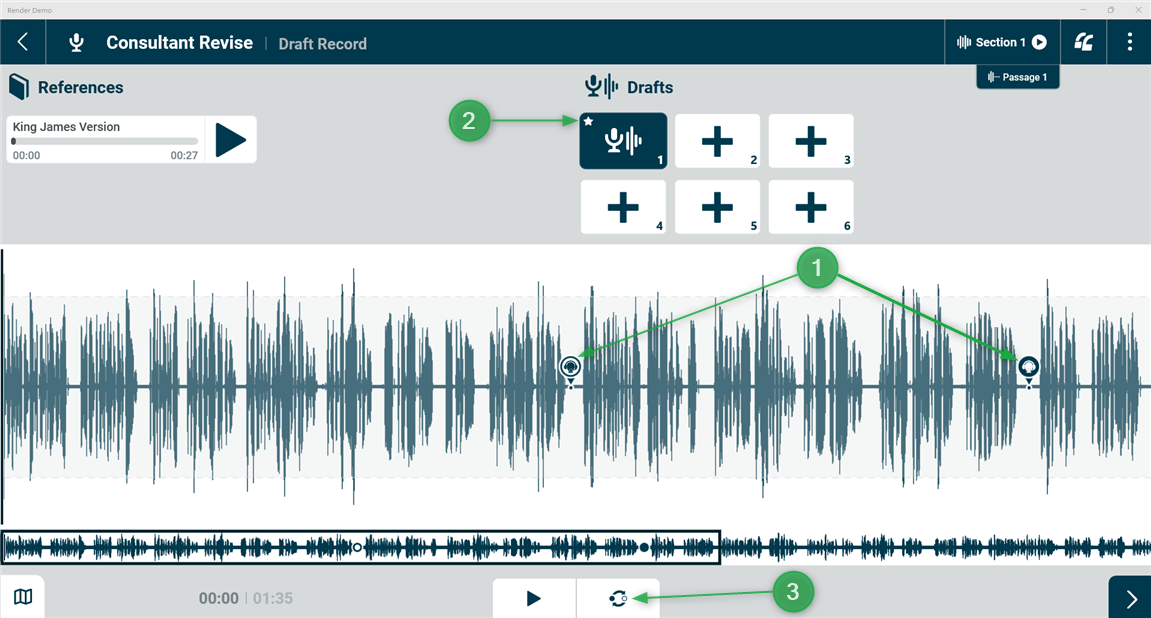
- Consultant Notes: These bubbles will be the same ones you saw in the Passage Select screen earlier for this passage.
- Current Draft version: This star on tile #1 indicates this is the current draft with feedback notes. New drafts (or edits of the current draft) will appear in the other tiles.
- Edit: Use the Edit tool to make changes (additions or deletions) to the translation.
- PROBLEM: Once you enter the Edit tool or open a new tile for recording, you will not have access to the Consultant’s notes.
- WORKAROUND: Before entering the Edit tool or opening a new tile, memorize or write down the time stamp and content of a given note by placing your cursor over the note (1) (below) and remember the time stamp (write this down or memorize it along with the content) (2). For the first note in the screenshot below, the timestamp is 00:29. Do this for every note on the passage before entering the Edit tool.
- Follow these instructions for using the Edit Tool.
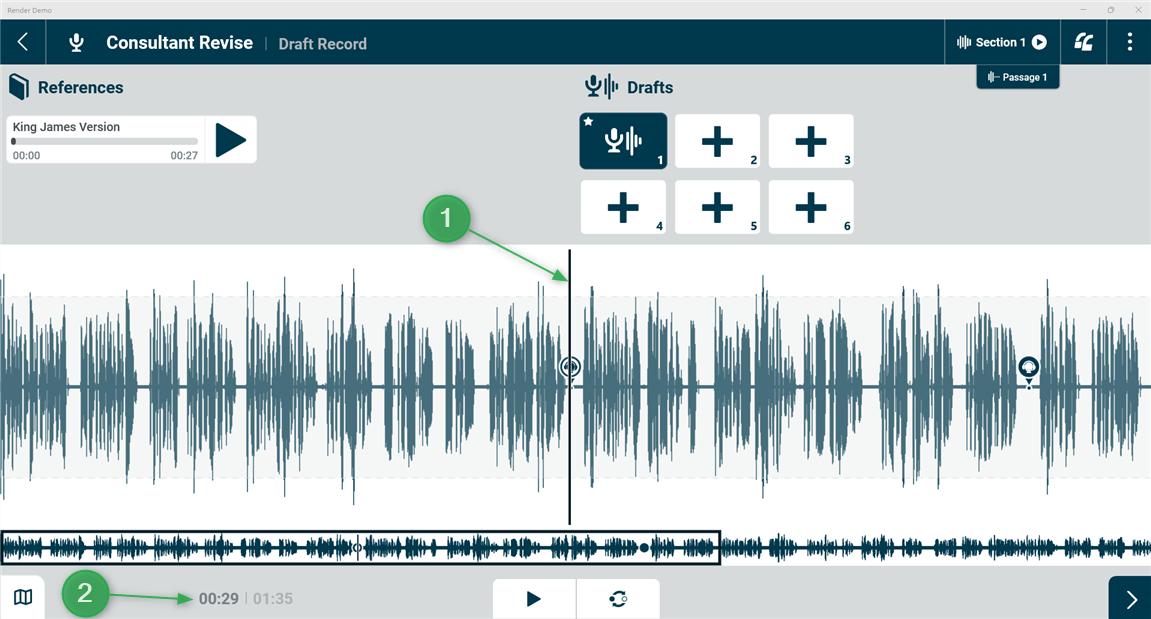
How to respond to a note from the Consultant
The Consultant is responsible to evaluate the accuracy of a translated Passage. The Consultant listens to the translation of the Passage and the Back Translation of that Passage in Render. If the Consultant does not understand the translation, he will base his evaluation on the Back Translation. When the Consultant has a question about the translation or identifies a problem, he will place a note on the translation at the appropriate location. In the picture above, there are two notes from the Consultant. After making all the notes he needs to make on a Section, he sends the Section forward to Consultant Revise where the translators will listen to and respond to his notes.
For each note, do the following:
- Place the scrubber (tap) on the note to open the “Notes” popup window;
- Make note (in your memory or in a written note on paper) of the timestamp. In the picture above, the timestamp for the first note bubble (1) is 00:29 (2);
- Play the audio note. Discuss the Consultants message to make sure you understand it. Then, decide as a team how you will respond. There are three categories of responses:
- You agree with the Consultant’s evaluation and will make the necessary change to the translation. In this case, record a reply note to the Consultant saying something like this: “We agree with you and will make the necessary change to our translation.”
- You believe there is a problem with the Back Translation which has misled the Consultant. In this case, record a reply note to the Consultant saying something like this: “We believe there is a problem in the Back Translation. We think our translation does not have the problem you think it has.” To listen to the Back Translation of a section, follow these steps:
- click/tap on the 3-dot menu in the upper right corner of the Render screen;
- scroll down and click/tap on “Consultant Check” and then click/tap on “Consultant Revise.” This will open the list of Sections in the queue at this sub-stage. Click/tap on the Section at the top of the list (the same number of the Section you are working in). Do not click/tap on the checkbox. Rather, click/tap to the right of the checkbox, in the middle of the words.
- see the information that appears on the right side of your screen. Scroll down and play the Back Translation audio files from there;
- You disagree with the Consultant’s evaluation and believe that your translation is correct. In this case, record a reply note to the Consultant saying something like this: “We understand your feedback but defend our translation because…” and explain your reason for wanting to keep the translation as it is.
- Make note of your decision for this note (in your memory or in a written note on paper).
Do this for each and every note before entering a new recording tile or the editing screen.
Make all the changes that need to be made, either in a completely new draft of the passage, or by editing the passage.